TL;DR. A clean GravityZone deployment is the same job on every OS: build the right package in Control Center, get it onto the endpoint, confirm the agent reported in. Windows is easy. macOS needs a system-extension approval, and missing that window is the most common rollout failure we see. Linux is a single downloader script, but by default GravityZone's traffic-interception feature terminates outgoing SSH on Linux endpoints, which silently breaks git, deploy keys and CI runners. Check that setting before you roll out. Verification isn't optional on any of them.
Bitdefender GravityZone is a single-agent platform (Bitdefender Endpoint Security Tools, usually shortened to BEST) that runs on Windows, macOS and Linux from one console. The product is genuinely cross-platform. The deployment has three different shapes, because the operating systems have three different security models. This is the field guide we use on every rollout.
Three things, in order. Skip any one of them and the rollout goes sideways inside the first week.
1. Control Center access with the right role. Deployment work happens in the Bitdefender GravityZone Control Center (cloud tenant: gravityzone.bitdefender.com). You need at least Network Administrator on the target company. The default Reporter role cannot create installation packages, which is a fun way to lose ten minutes.
2. A deployment package built for the target group. Packages live under Network → Packages. Each one binds an installation policy, an endpoint group, the modules you want enabled (Antimalware, ATC, Content Control, Firewall, Patch Management, Full Disk Encryption, EDR) and an agent role. For most fleets, one package per OS family bound to the pilot policy until cutover. The package generates downloadable installers and a one-line install command for Linux.
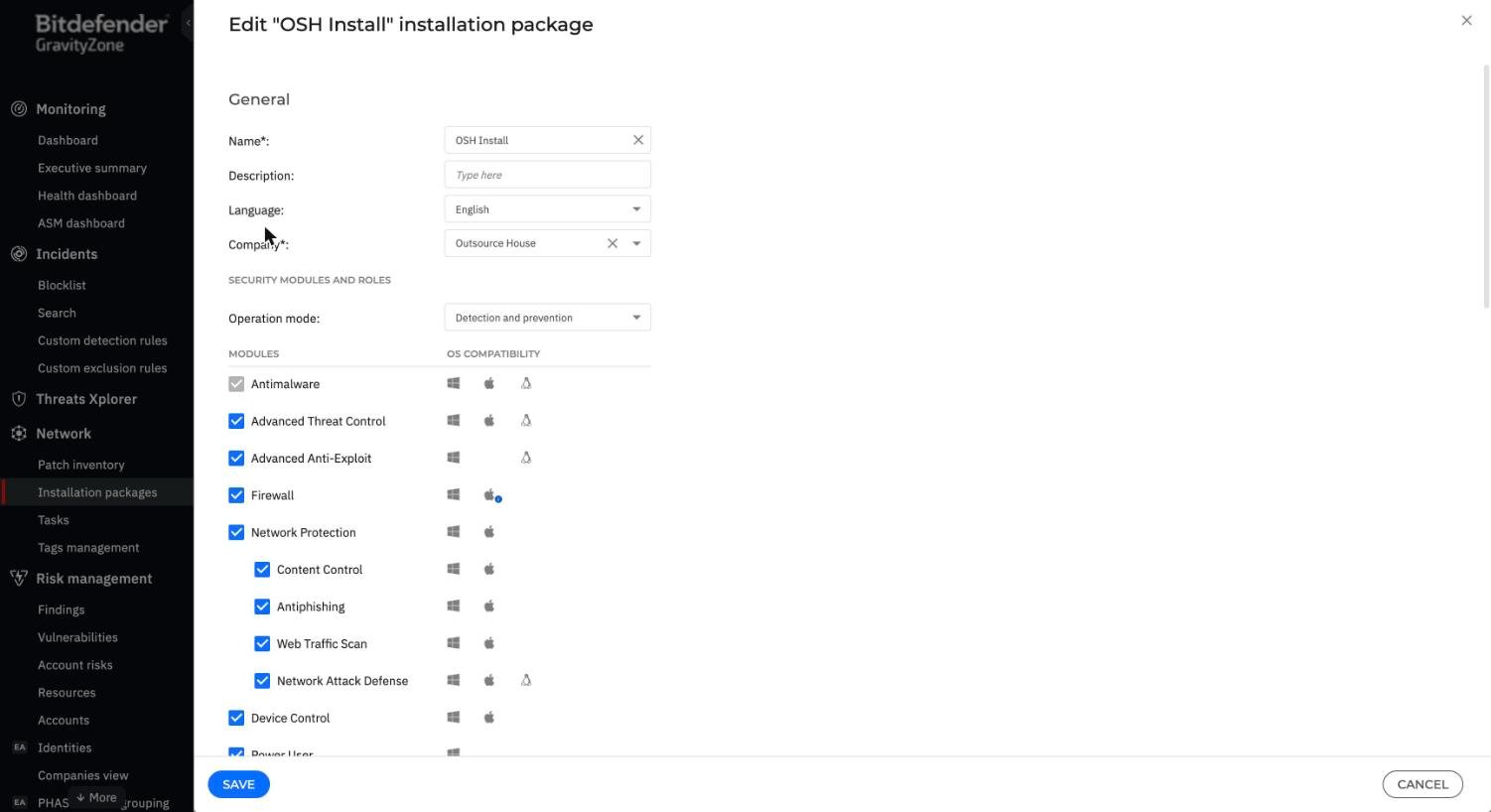
3. Prerequisites on the endpoints themselves. This is where rollouts fail quietly:
*.bitdefender.com and the regional cloud endpoint. If outbound traffic goes through a TLS-inspecting proxy, you need the Bitdefender certificate-pinning bypass or the agent refuses to phone home.The GravityZone installer is a small downloader. The full agent is not in the package you download. What's in the package is a kit that authenticates to Control Center, pulls the policy, then downloads the modules you licensed. This matters for two reasons: the installer needs internet access during install, not just after; and the same downloader handles fresh installs, repairs, and module-add operations.
Once the modules land, the agent registers against the Control Center tenant using a token baked into the package. The endpoint appears in the Network view within minutes. From there it pulls policy on a heartbeat (default five minutes), pushes telemetry on the same cycle, and pulls signature and engine updates in the background.
There is no separate "management agent" and "AV agent". One process does everything: epag.exe on Windows, epagd on Linux, the EndpointSecurityforMac system extension on macOS.
Easiest of the three, mostly because Windows lets you run a signed MSI as SYSTEM with no further questions. Three deployment paths, in order of how often we use them.
For small fleets or pilot machines: download the Windows installer from the package screen in Control Center. There's only one shape here, a .exe downloader (setupdownloader_[token].exe). Control Center does not offer a ready-made .msi, that's a common assumption and it's wrong; if your deployment path needs an MSI (GPO, most RMMs), you build one yourself, see below. Run the EXE as Administrator for a manual install. It detects existing AV, removes it if it's on the supported list, reboots if it has to, and registers the endpoint.
For a true silent install (the version you'll bake into a deployment script), the EXE accepts command-line flags:
# Silent install, no UI, no reboot prompt, log to file
.\setupdownloader_[token].exe /bdparams /silent /v"REBOOT=ReallySuppress /qn /l*v C:\Temp\bdinstall.log"
The /bdparams flag is the one people miss. Without it, the Bitdefender-specific arguments don't propagate to the embedded MSI. The REBOOT=ReallySuppress is mandatory if you're rolling out from a remote-management tool that can't tolerate an unscheduled reboot.
Bitdefender doesn't publish the MSI directly, you generate it from the EXE downloader using a separate MSI Wrapper template. Download it from https://download.bitdefender.com/SMB/Hydra/release/bst_win/downloaderWrapper/BEST_downloaderWrapper.msi, then run:
msiexec /i C:\path\to\BEST_downloaderWrapper.msi /qn GZ_PACKAGE_ID=[token] REBOOT_IF_NEEDED=1[token] is the same alphanumeric string embedded in your downloader's filename (setupdownloader_[token].exe), not a separate value you look up anywhere. Don't rename the downloader EXE before extracting the token, the server-side lookup depends on the original filename. REBOOT_IF_NEEDED=1 is optional, it forces an automatic restart (with a 10-minute user warning) when the install has to remove a competing AV product first.
Standard MSI deployment via Computer Configuration → Policies → Software Settings → Software installation. Point it at the MSI you built above, set deployment type to Assigned, gpupdate. The catch: AD's MSI deployment is fragile if share permissions aren't right, and it doesn't handle the agent's reboot requirement gracefully. On any fleet bigger than 50 endpoints, use Intune or a proper RMM.
The cleaner path for modern fleets. Wrap the EXE installer with the Microsoft Win32 Content Prep Tool into an .intunewin file, upload it to Intune as a Win32 app, and use the install command:
setupdownloader_[token].exe /bdparams /silent /v"REBOOT=ReallySuppress /qn"Detection rule: registry key HKLM\SOFTWARE\Bitdefender\Endpoint Security, value ProductVersion exists. Assignment: required, target the Azure AD device group that matches your pilot ring. Intune will run the installer as SYSTEM, which is what you want.
GZ_PACKAGE_NAME="..." overrides the package name baked into the installer.INSTALL_PATH="D:\Bitdefender" puts the agent on a non-default drive.MODULES="atc,fw,cc,edr" overrides the module selection from the package (only honoured if your role allows)./uninstall plus the company-level uninstall password removes the agent. Worth scripting before a re-image.Harder. Apple's security model has tightened steadily since Big Sur and the GravityZone agent now runs as a system extension rather than the old kernel extension. System extensions need explicit user or MDM approval, and an installer that doesn't get that approval will sit on the device with reduced functionality and no telemetry.
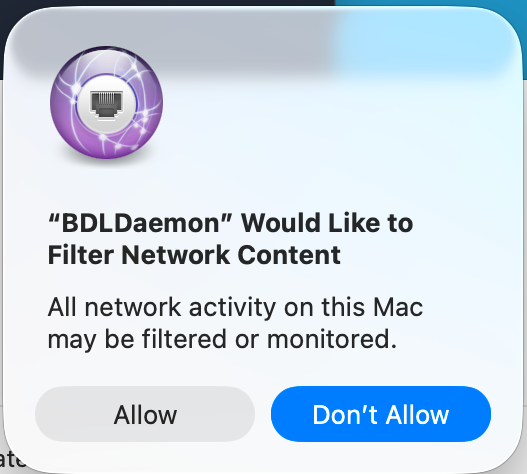
Control Center offers the same two shapes as Windows and Linux. The Downloader is a small setup_downloader.dmg that phones home and pulls the rest, same pattern as the other two OSes. For offline machines or remote-deploy tools (Casper and similar), there's also a full Kit, downloaded per architecture: Bitdefender_for_MAC.dmg for Intel, Bitdefender_for_MAC_ARM.dmg for Apple Silicon. Grabbing the wrong architecture is a real failure mode, check before you run it. Either way you mount the DMG and run the antivirus_for_mac.pkg inside it. The installer copies the agent to /Library/Bitdefender/AVP and prompts the user to allow the system extension under System Settings → Privacy & Security, to grant Full Disk Access to the Bitdefender helper, and on Apple Silicon, to enter an admin password to load the extension.
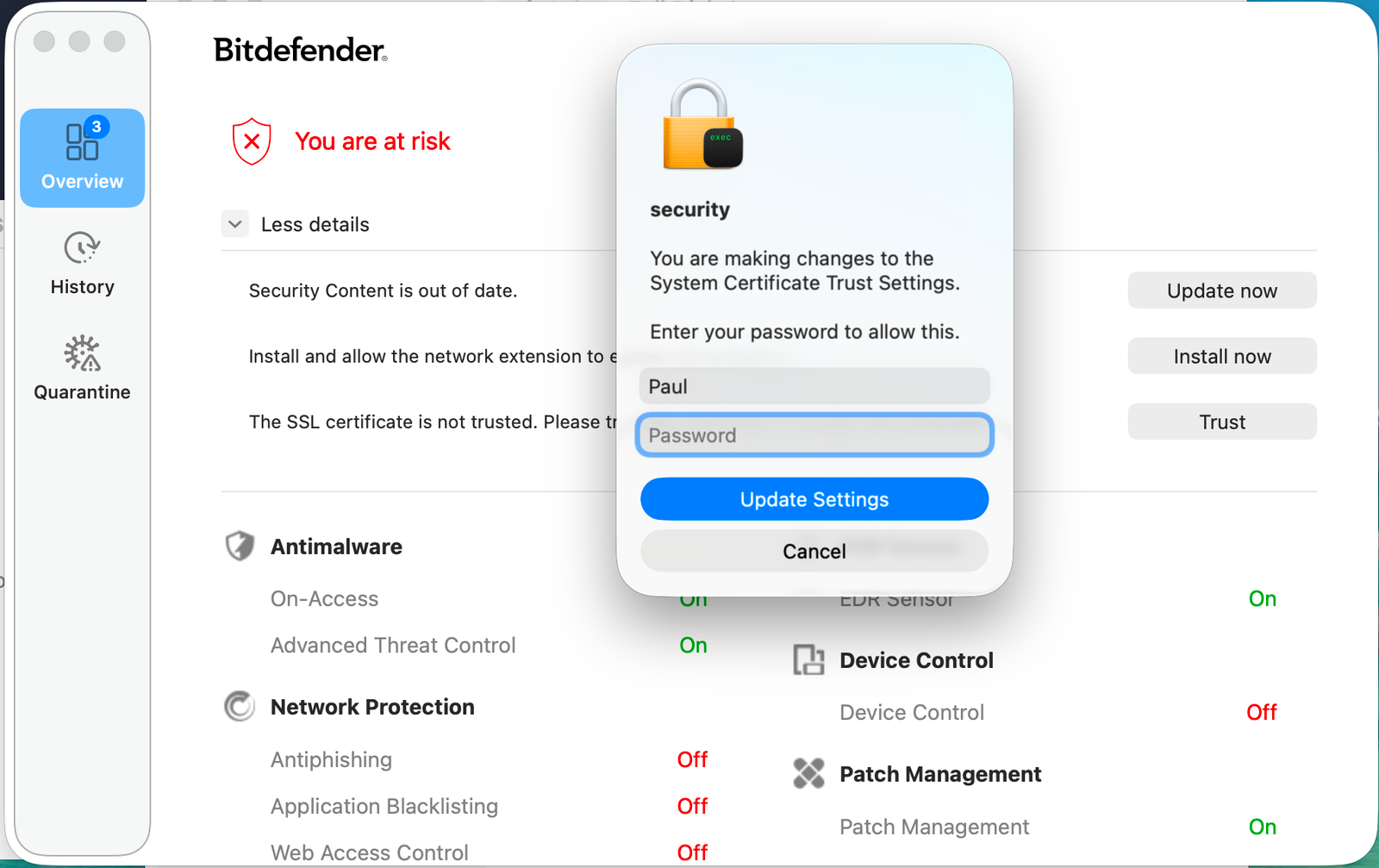
If the user is technical and present, this works. If they click "Don't Allow" on the security dialog because they've been trained to be suspicious, the agent runs in a degraded mode and you have to drive out there to fix it. We still run unmanaged rollouts when that's what the client needs, that's the risk we flag before we start, not a reason to rule it out.
The right answer for any Mac fleet of meaningful size. The MDM ships three things ahead of the installer:
With those profiles installed first, the PKG pushes silently and the agent comes up clean. No user prompts, no dialogs, no degraded mode. The PKG push itself is straightforward: VPP / direct upload in Hexnode, LOB app in Intune, policy in Jamf.
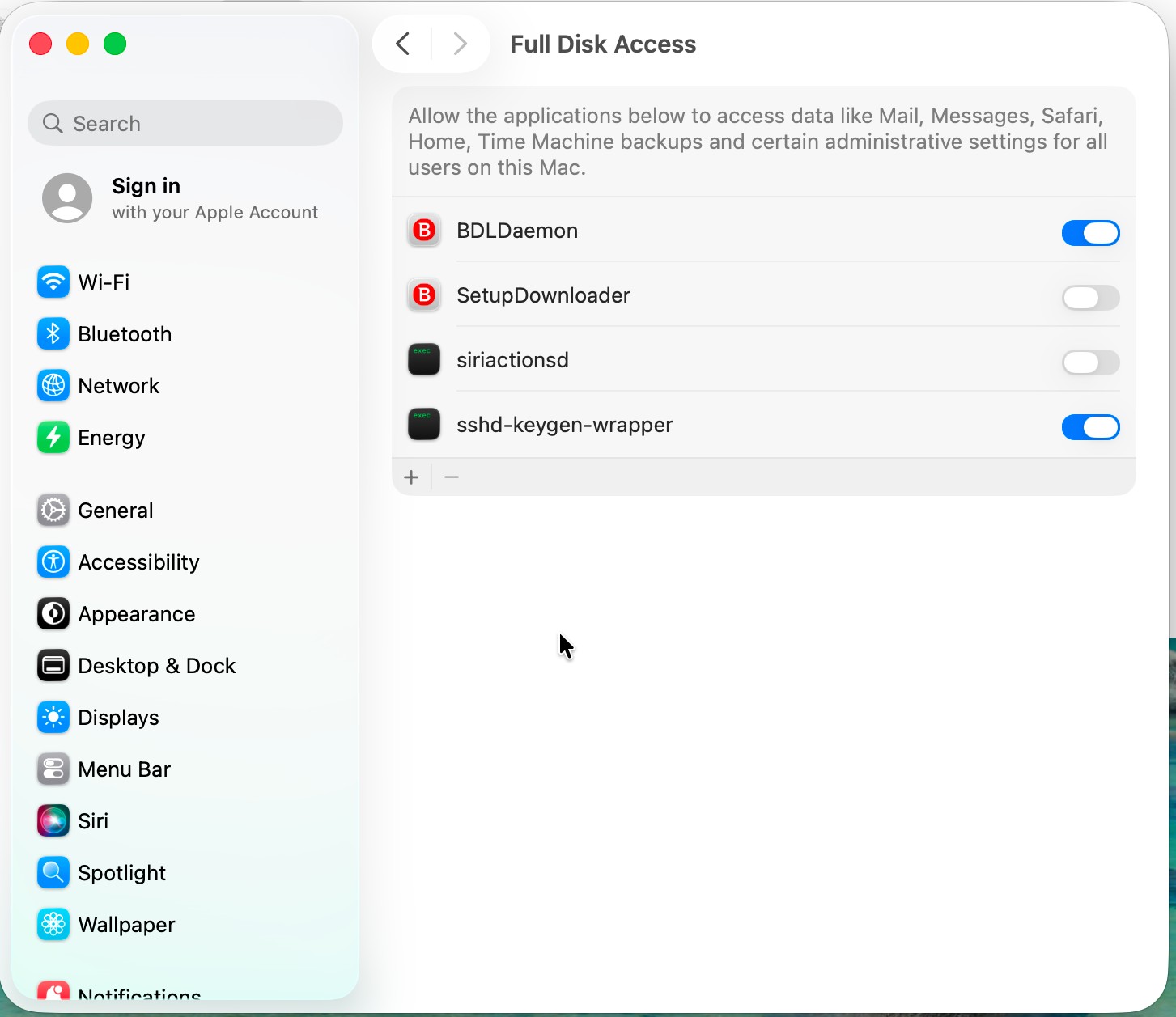
This is the single most common macOS deployment failure. If the three profiles above are pushed after the PKG, or pushed too close together so the PKG installs before the System Extension profile applies, the agent loads its extension and macOS blocks it. Once blocked, only a manual approval clears it. On 200 Macs that means 200 user touches.
The fix is order. Push the profiles, wait for the MDM to confirm they've applied (Hexnode and Intune both report this), then push the PKG. We stage the deployment in two phases with a 30-minute gap on first rollout. No stuck endpoints since we started doing that.
The most varied of the three, because "Linux" isn't one operating system. Bitdefender supports a specific list and the install path differs slightly per family.
Current as of 2026 (always check the Bitdefender support matrix for the latest):
Other distros (Alpine, Arch, Gentoo, FreeBSD, Slackware) are not supported. If you have a one-off Alpine container host, you have a gap and it needs a different conversation.
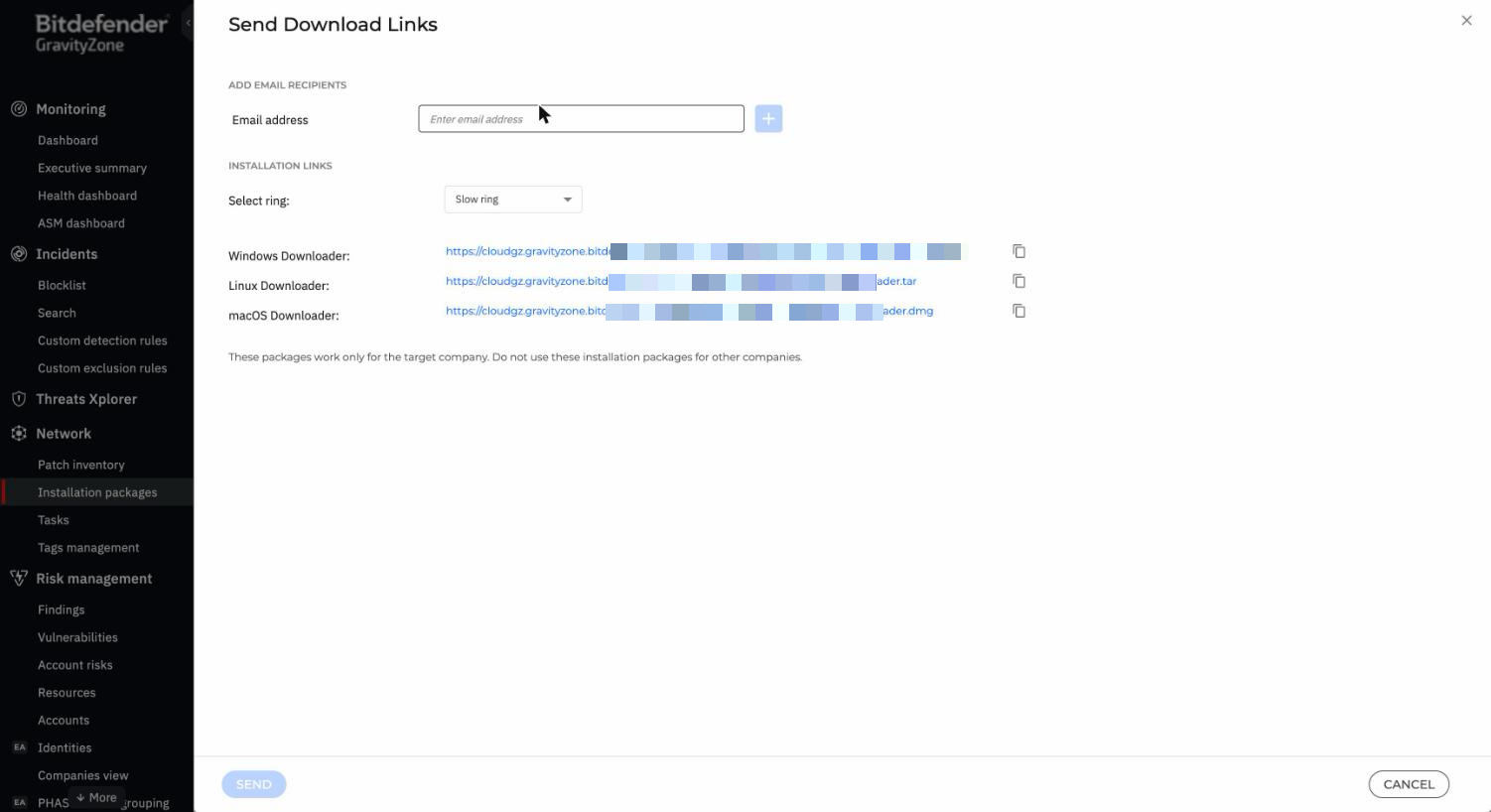
Control Center generates a tarball per Linux package, setup_downloader.tar, from Network → Packages. Download it to the host (wget if curl isn't installed: don't chase a phantom "curl needs upgrading" error, it's just a stale apt index, run sudo apt update first), extract it, and run the installer it contains as root:
tar xf setup_downloader.tar
chmod +x installer
sudo ./installer
There's no separate registration step and no .deb/.rpm to install by hand. The token is baked into the tarball you downloaded from Control Center, and installer is itself a small downloader: it authenticates, pulls your policy, then fetches and installs the actual agent packages and kernel-module dependencies for the detected distribution. It takes a few minutes; the install log lands at /opt/bitdefender-security-tools/var/log/installer.log.
Verify the agent is up, two ways:
sudo /opt/bitdefender-security-tools/bin/bduitool info
sudo systemctl status 'bd*'
bduitool get ps gives the module-level view, useful because Linux only ever gets a subset of what Windows and macOS carry. A verified Business Security Enterprise install shows Antimalware, EventCorrelator, AntiExploit, NetworkMonitor and BehavioralScan (ATC) on, plus Vulnerability Assessment and Sandbox Analyzer if licensed; IntegrityMonitor and On-Access YARA are off unless you've turned them on. There's no Content Control, Web Traffic Scan or Antiphishing module on Linux. Checking for those in the console is a wasted trip.
Updates are pulled automatically on the same heartbeat as policy (bduitool get ps reports current engine/product versions and whether an update is pending). There's no separate manual update command to run per endpoint.
The most common Linux deployment failure on RHEL-family hosts is SELinux blocking the agent's kernel module from loading. Symptom: bdsec is running, the agent reports to Control Center, but on-access scanning is silently disabled and the EDR telemetry is empty. dmesg shows AVC denials.
Two fixes. The polite one: install the SELinux policy module Bitdefender ships in /opt/bitdefender-security-tools/share/selinux/ with semodule -i bitdefender.pp, which adds the labels and rules the agent needs. The blunt one: set SELinux to permissive while you confirm coverage, then move it back to enforcing once the policy module is in. Don't leave it permissive. That defeats the point of running RHEL-family in the first place.
On hardened Debian/Ubuntu hosts running AppArmor, the equivalent issue is rare but possible. Check dmesg | grep apparmor if the agent is misbehaving and add a profile exception under /etc/apparmor.d/local/.
Network Protection → General → Intercept Encrypted Traffic has a Scan SCP/SSH toggle that only appears on Linux (the same panel offers Scan HTTPS on Windows/macOS and Scan FTPS, also Linux-only). It ships enabled on GravityZone's own Default Policy - Starter, and it is not a passive scan: the agent terminates the outgoing SSH connection and re-originates it with its own certificate, the same way a TLS-inspecting proxy handles HTTPS.
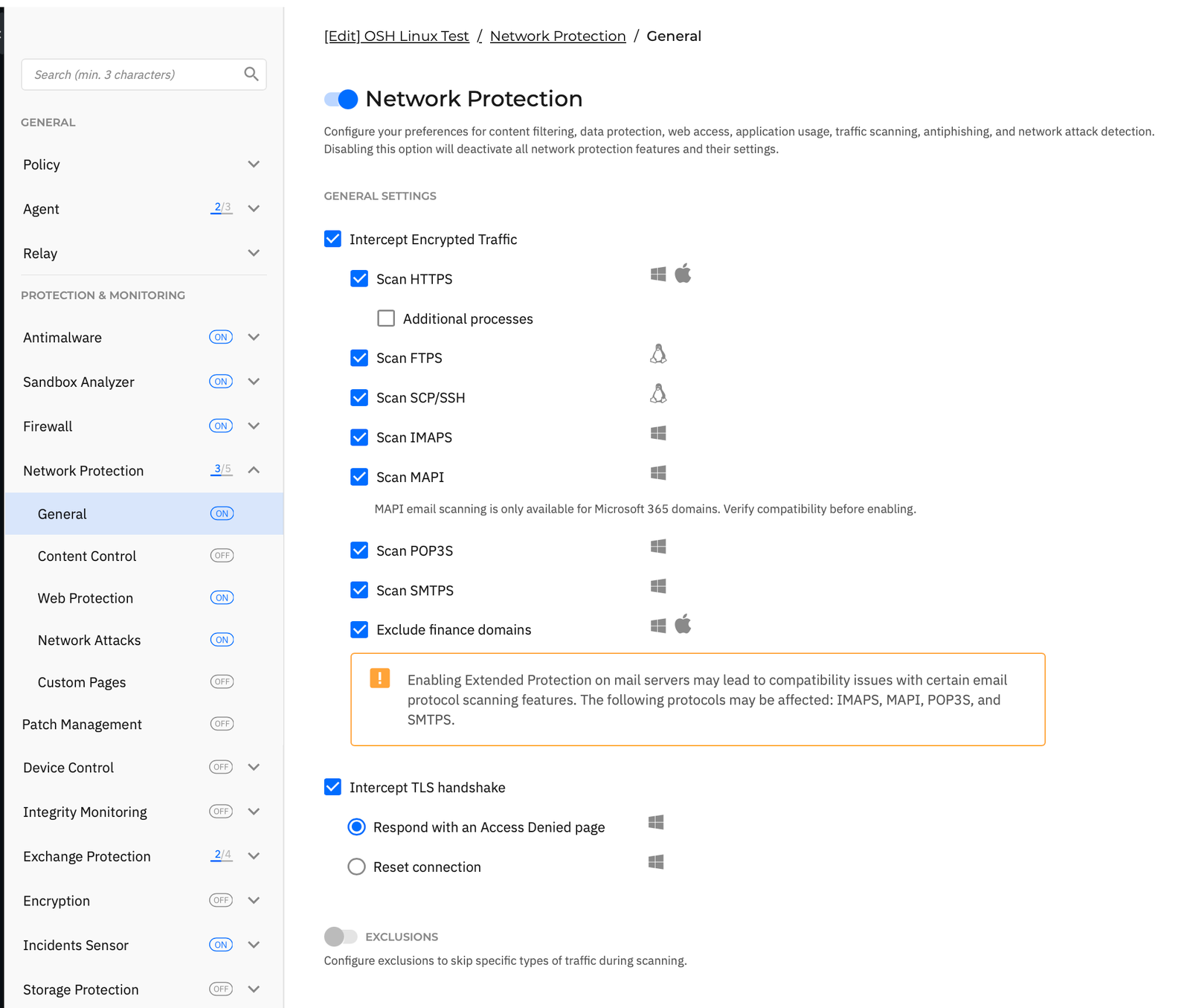
That breaks public-key authentication outright, to every destination, not just one flagged site. We reproduced it in a lab VM: with the setting on, ssh-keyscan against a known host returned a substituted RSA key instead of the real one. Key-based login that had worked five minutes earlier started failing with Permission denied (publickey,password). A proxy that re-signs the session cannot sign with your private key. Untick the setting and both symptoms clear immediately, no re-key needed on the client side.
The practical fallout: git over SSH, deploy keys, CI runners and any internal server reached by key auth all break silently the moment this policy applies. It's usually reported as "GitLab/GitHub's host key changed," not as a Bitdefender issue. Traffic exclusions (IP/mask) work but don't scale: you'd be enumerating every SSH destination a developer might reach, and CDN/anycast ranges move without notice. Turning the setting off for any group doing git-over-SSH or key-based server access is the fix that actually holds:
Policies → [your Linux/workstation policy] → Network Protection → General → Intercept Encrypted Traffic: untick SSH under outgoing protocols. HTTP and mail scanning are unaffected. Check Default Policy - Starter too if any of your fleets inherit from it. It carries this setting on out of the box.
The Bitdefender Linux agent is for hosts. Don't try to install it inside a container; the kernel-module model doesn't work there. For container workloads, run the agent on the host (Docker host, Kubernetes node) and let it see the container processes through the host's process tree.
This is the step rollouts skip, which is why "we deployed Bitdefender to all 300 endpoints last quarter" so often turns out to mean "we deployed to 280 and never noticed the other 20."
Three checks on every endpoint:
"C:\Program Files\Bitdefender\Endpoint Security\product.console.exe" /c GetCommunicationStatus. On macOS: the menu-bar icon shows green; or run /Library/Bitdefender/AVP/product/bin/BDLDaemon --info. On Linux: bduitool info shows Communication: Connected.For fleets bigger than 50 endpoints, automate this via the Control Center API. Pull the endpoint list, filter for Last Seen older than 24 hours and Module Status not Active, email the result. Once a week without fail.
The repeat offenders, in the order we see them.
The agent tries to verify its own code-signing certificate by reaching Bitdefender's CRL server. Behind a TLS-inspecting proxy without the right bypass, the check fails and the install rolls back with a generic error. Fix: bypass TLS inspection on *.bitdefender.com, *.bdrescue.com and the Microsoft / Apple CRL endpoints. Document the bypass, because the next firewall admin will remove it otherwise.
We mentioned this earlier; it deserves its own bullet. A laptop with a CMOS battery dying or a server that lost NTP three weeks ago will fail TLS handshake against Control Center. Symptom: install succeeds, agent never reports in. Fix: confirm w32tm /query /status (Windows), systemsetup -getusingnetworktime (macOS) or timedatectl (Linux) shows correct time and active sync.
Covered under SELinux above, with two extra notes. First, on RHEL hosts with FIPS mode enabled, dkms builds may fail because the kernel rejects unsigned modules. Solution: enrol the Bitdefender signing key into MOK (Machine Owner Key) at first boot. Second, on Ubuntu hosts running HWE kernels (Hardware Enablement, the newer kernels backported to LTS), you sometimes have to install linux-headers-generic-hwe-22.04 rather than the plain linux-headers-$(uname -r) for dkms to find headers.
Already covered. Symptom: agent installed, Control Center shows it as connected, but EDR telemetry is empty and on-access scanning isn't catching test files. Cause: the System Extension and PPPC profiles arrived after the PKG. Fix: remove the agent, push the profiles, wait, push the agent again. Apple does not give us a "retroactively approve" path. Once the user dialog is dismissed, only a clean re-install resets the state.
The remover handles the brand-name AVs listed earlier. It does not handle SentinelOne, CrowdStrike, Cylance, Cortex, or other EDR products. Those need to come off via their own removal tool before the GravityZone agent goes on. Two EDRs on one host is not defence in depth. It's a bluescreen waiting to happen.
Walk the list backwards: connectivity (can the host reach gravityzone.bitdefender.com on 443?), then DNS, then time, then proxy, then the install log. Windows: %PROGRAMFILES%\Bitdefender\Endpoint Security\Logs\install.log. macOS: /Library/Logs/Bitdefender/. Linux: /opt/bitdefender-security-tools/var/log/installer.log. Real errors are in there.
Not a deployment failure at all. The agent installed and reported to Control Center cleanly. It's Intercept Encrypted Traffic → Scan SCP/SSH, on by default, terminating and re-signing outgoing SSH. Covered in full above. Worth its own entry here because the symptom looks nothing like a Bitdefender problem: a developer reports GitLab or GitHub's host key changed, not "the AV agent broke my SSH."
Cross-platform deployments go well when they're planned and badly when they aren't. OSH does GravityZone rollouts end-to-end: scoping, package design, pilot, phased rollout, MDM integration on Mac, SELinux work on Linux, post-deploy verification, and the policy tuning that makes the agent quiet instead of noisy. Fleets from 20 endpoints to 2,000.
If you'd rather hand the job to someone who has done it 100 times, that's what our professional services engagement is for. Email support@osh.co.za and we'll come back with a written rollout plan, a price, and a target go-live date the same business day.